

5.0 on the Shopify App Store, from 1 review (opens in a new tab)

Product badges and labels on your Shopify product photos

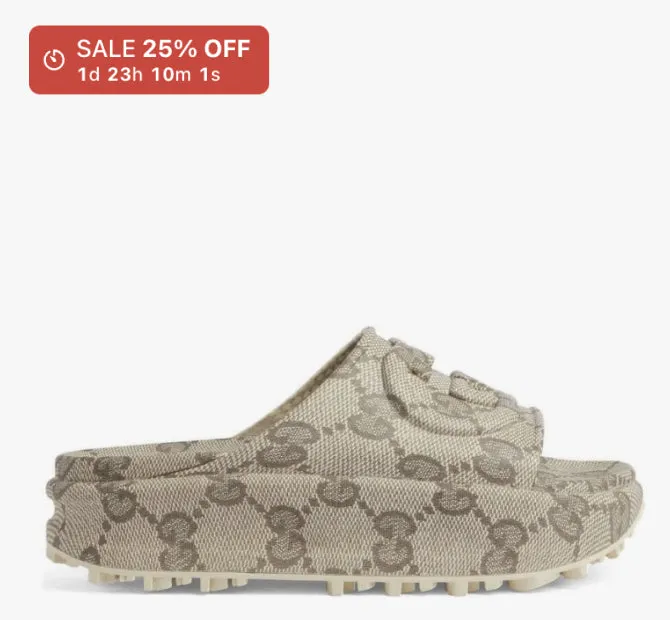
Show a sale, a new product or low stock on the photo itself, on the product page and in your collection grids. You make a badge once and choose the products it shows on.

  • Free plan
  • No theme code
  • Fast setup

What it does

The reason to buy now, on the photo

A sale nobody sees is a sale you might not make. A badge puts it on the photo, next to your theme’s own badges.

  • On the photo and in the grid

    Badges sit on your gallery photos. After a short check of your theme, they also show in collection pages and search results.

  • The numbers fill themselves in

    A badge can show the discount, read from the compare-at price. It can show how many are left, read from your inventory.

  • Shown only when it should be

    On Growth and Scale, a badge can follow a schedule, carry a countdown, or show only when a condition matches, such as low stock.

Live demo

6 examples on a real Shopify store

Each one opens on our demo store in a new tab, so you can try it the way your shoppers will.

Demo store password 123

All 47 examples
  • Discount & pricing

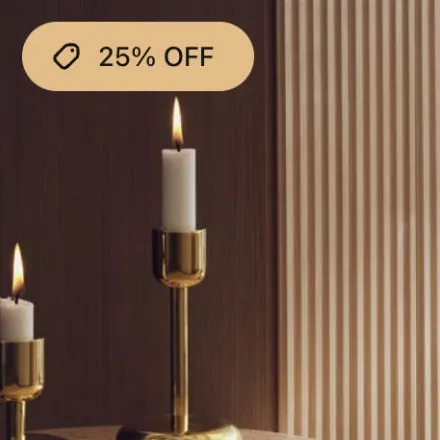
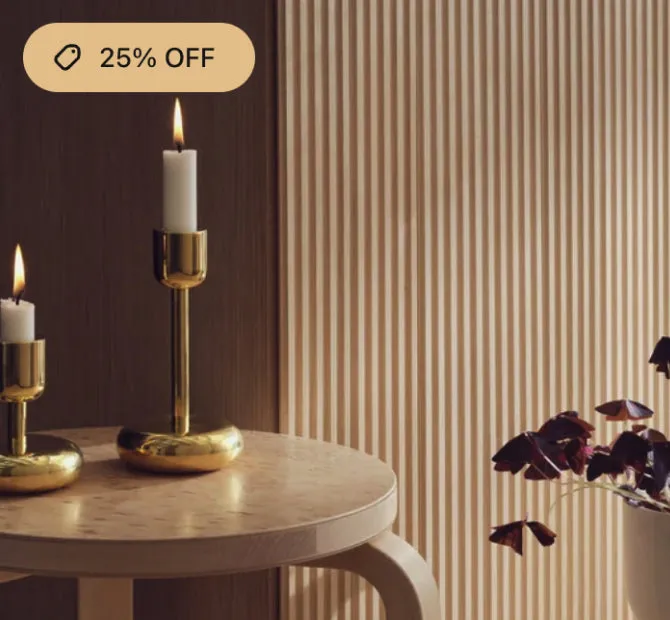
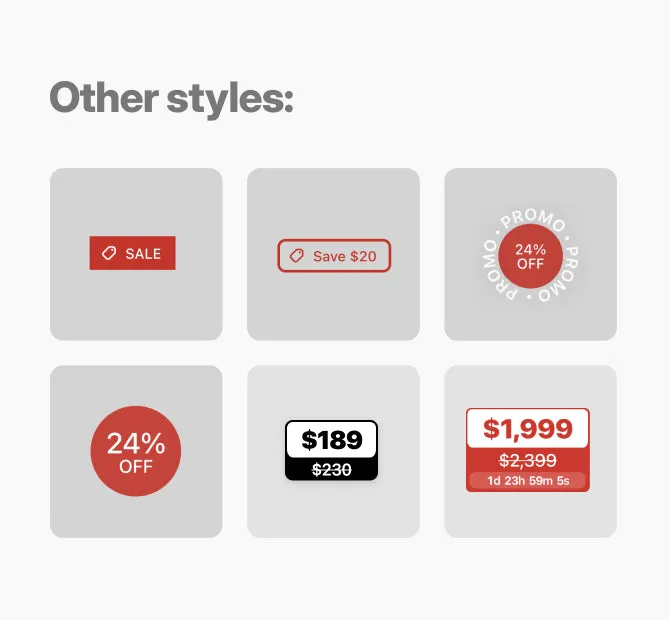
    The discount on the photo, as a percent or the amount saved.

  • Urgency & inventory

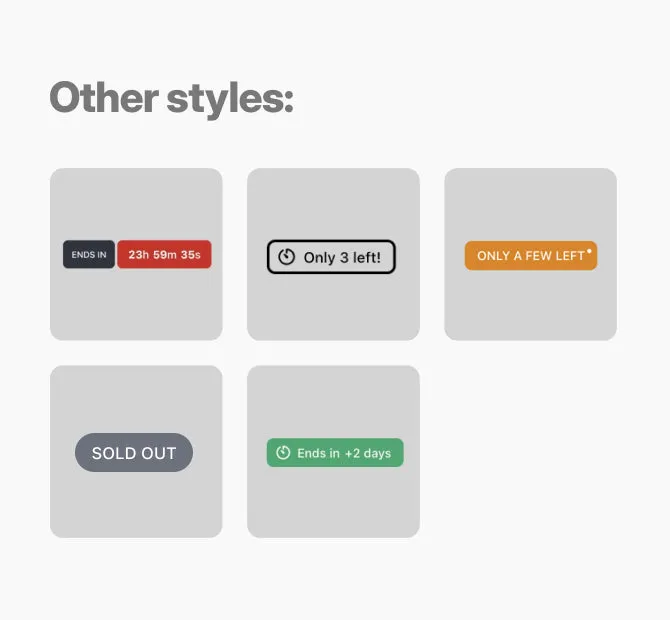
    A sale countdown, or a low stock badge that follows your inventory.

    Plans: Growth and Scale

  • Trust & info badges

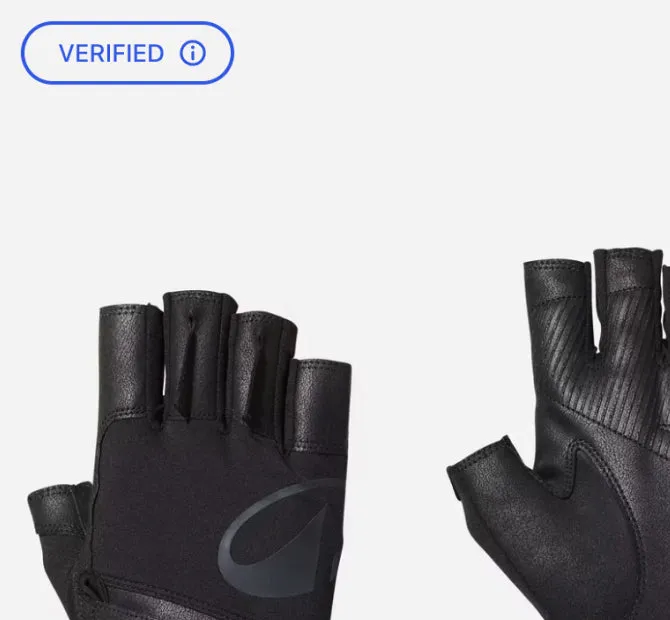
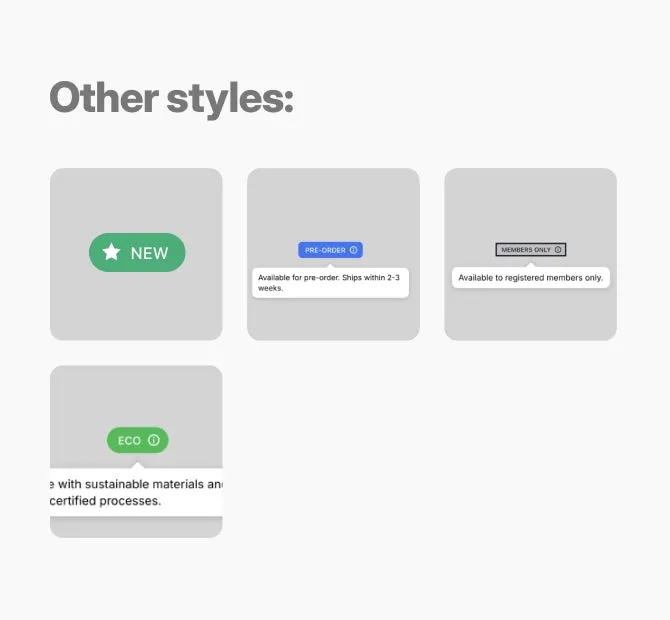
    A small badge that opens a short note, for a shipping date.

    Plans: Growth and Scale

  • Social proof

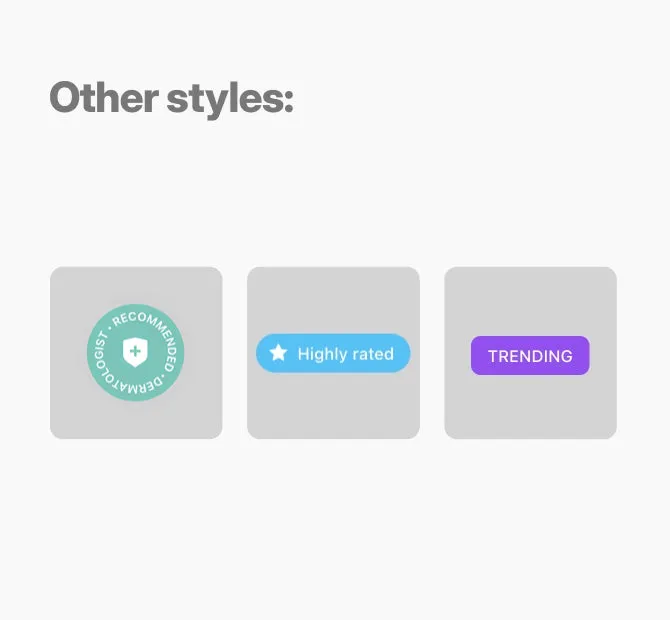
    Bestseller, Trending or Highly rated, on the products you pick.

  • Stamps & seals

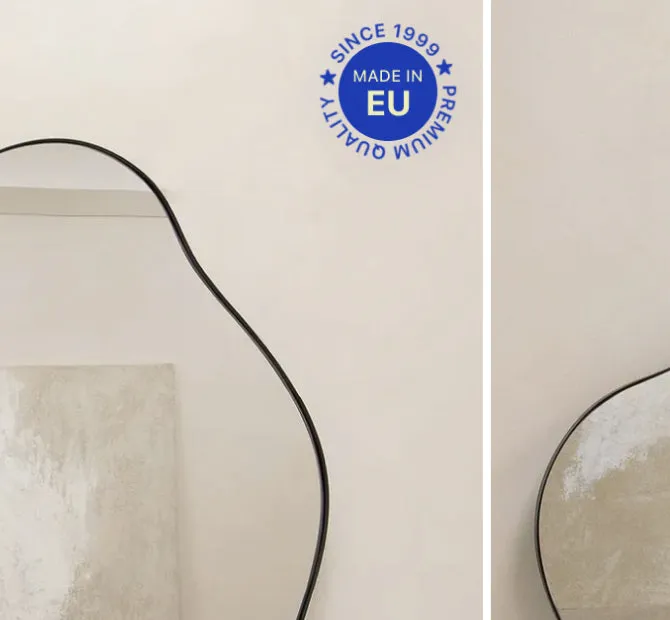
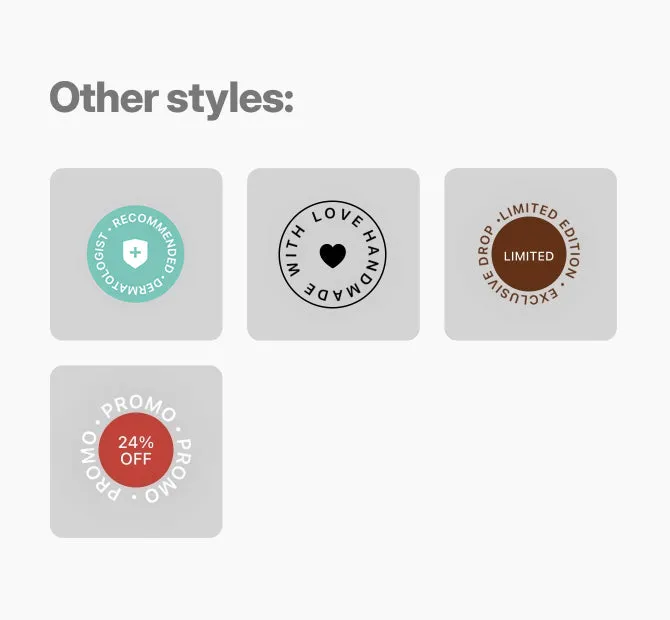
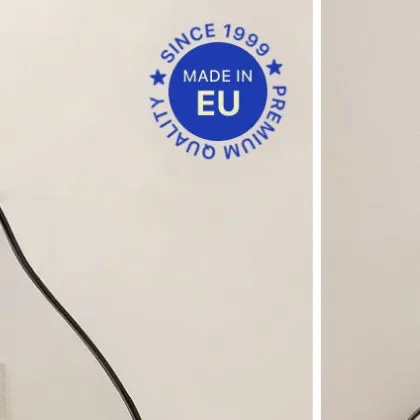
    Round stamps for a limited edition or a Made in label.

    Plans: Growth and Scale

  • Your own image or text

    An image you upload or a text you write, for a campaign.

How to add it

How to add a badge to a Shopify product image

You need no code and no developer. You can start from a template.

  1. Install LinkSpot and turn the app embed on in the theme editor. You do this once.
  2. In the app, open Elements and add a badge, or start from a template.
  3. Choose the products it shows on and its place on the photo.
  4. Write the text or upload an image. On Growth and Scale you can add a countdown or a stamp.
  5. Pick the colour, the size and the corners.
  6. Save. The badge is on your shop a few seconds later.
Read the full guide in the docs (opens in a new tab)

Theme badges and LinkSpot

Your theme’s badges stay. LinkSpot adds the rest

Most themes show a sale badge and a sold out badge by themselves. LinkSpot does not replace them. Its badges are added next to them.

Your theme’s own badges

  • Usually a sale badge and a sold out badge.
  • They follow the product’s price and stock.
  • The theme decides the text and the style.

LinkSpot badges

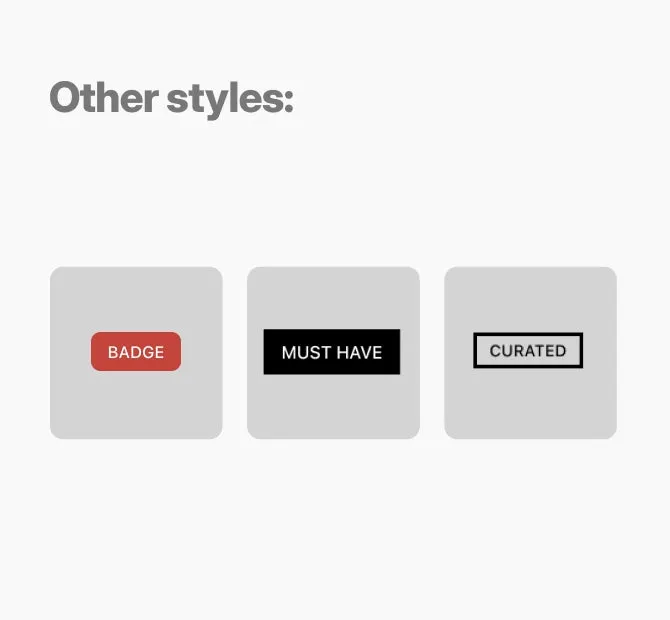
  • Any text or image, in the style you choose.
  • On the gallery photos, and on product cards after a short check.
  • Your own rules for when each one shows.

Keep the theme’s sale badge if you like it. Use LinkSpot for the badges your theme cannot show.

Badges on each plan

Scroll the table sideways to see every plan.

Feature Free Starter Growth Scale
Volumes
Badges 2 50 100 500
Design library
Stamp badge style Not included Not included Included Included
Targeting and scheduling
Schedule badges by date Not included Not included Included Included
Countdown timers Put a live countdown next to a sale badge. Not included Not included Included Included
Urgency animations Pulse, notification beat and grow effects, to draw the eye to a badge. Not included Not included Included Included
Badge tooltips on hover Not included Not included Included Included
Personalisation
Cart-level conditions Show a message based on what is in the cart, such as a free shipping threshold, the number of items or the total. Not included Not included Not included Included
Customer-level badge conditions Show a different badge to a different group of customers, using customer tags, order count or marketing opt-in. Not included Not included Not included Included
Badge text from metafields Pull live data from a product metafield into your badge text, for price tiers, custom labels or data from another app. Not included Not included Not included Included

See every plan and its price

Questions

What merchants ask about badges

Can a badge show on the product page photo?

Yes. Badges sit on the photos in your product gallery. They can also show on the product cards in collection pages and search results, after a short check of your theme in the app’s settings.

Does LinkSpot replace my theme’s sale badge?

No. Your theme’s own badges stay as they are. LinkSpot badges are added next to them, and you choose where each one sits on the photo.

Can a badge show the discount by itself?

Yes. The badge text can hold the discount in percent or in money. LinkSpot reads it from the product’s compare-at price, so the badge changes when the price does.

Can a badge show only when stock is low?

Yes, on Growth and Scale. A condition on the inventory quantity shows the badge only below a number you choose, for example fewer than 5. The text can show the number too, as in “Only 3 left”.

Can a badge start and stop on a date?

Yes, on Growth and Scale. You set a start and an end, and a countdown can run inside the badge until the end.

Will badges slow my collection pages?

No. A page loads only the code for the elements it shows. A page with badges does not load the hotspot code or the collage code.

Free plan · 7 day trial on paid plans

Put one badge on your best seller and look at the page

That is the whole test. If it does nothing for you, remove the app. Your theme is exactly where it was.

Demo store password 123