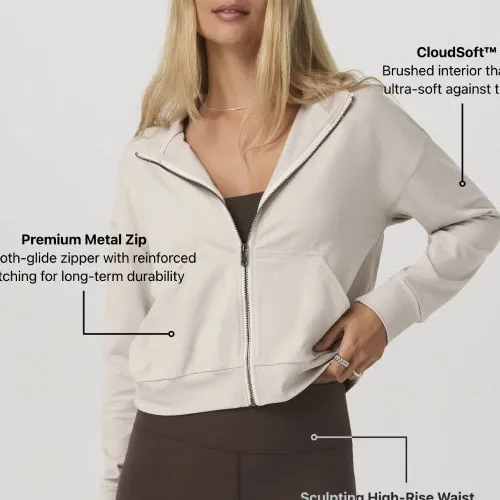

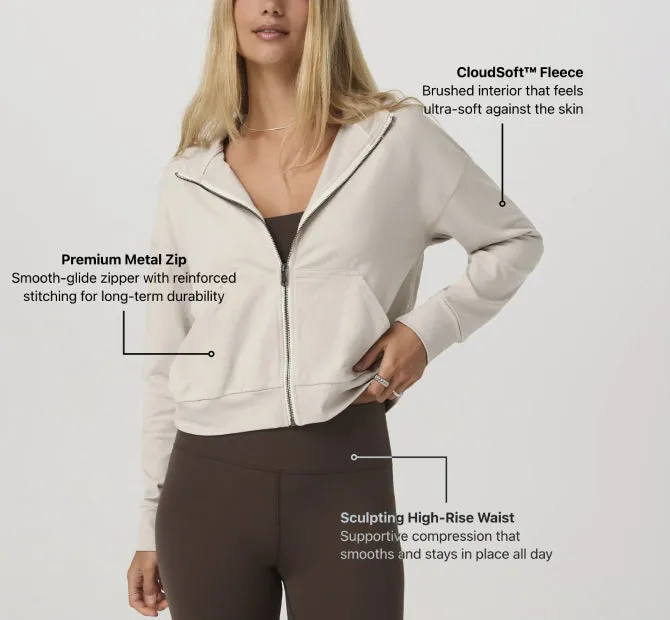
Leader lines + text
Thin lines join each part of the hoodie to its note.
Put a short note on the photo and point it at the pocket, the port or the fabric. The shopper reads the detail where they see it. Nothing in your theme changes.
What it does
The fabric and the zip are often in paragraph nine, and nobody reads that far. An annotation puts them on the photo.
Point at the part with a line, an arrow or a circle. On Growth and Scale, the marker can be your own icon or image.
The note stays on its detail at every size. It can also have its own place on a phone.
A note can be up to 200 characters, with bold and colour. It stays readable on light and dark photos.
Live demo
Each one opens on our demo store in a new tab, so you can try it the way your shoppers will.
Demo store password 123
Thin lines join each part of the hoodie to its note.
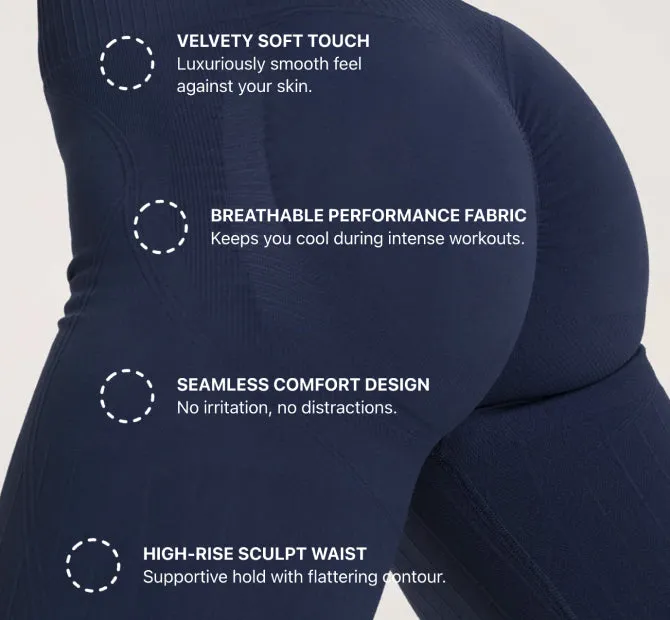
A turning dashed circle marks each spot, with a note beside it.
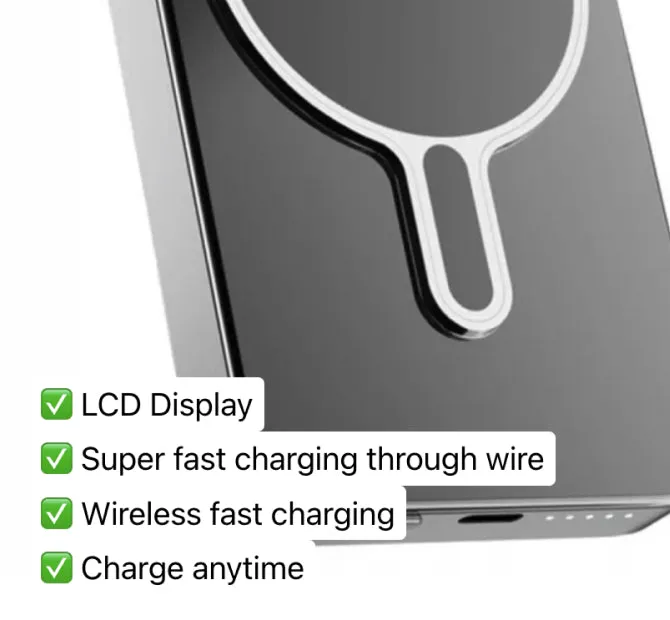
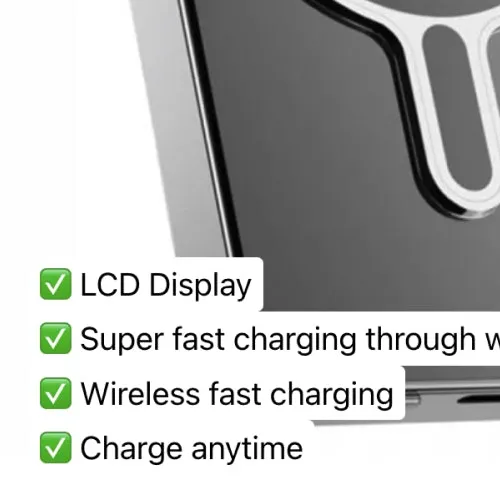
A short checklist on the photo, one feature per line.
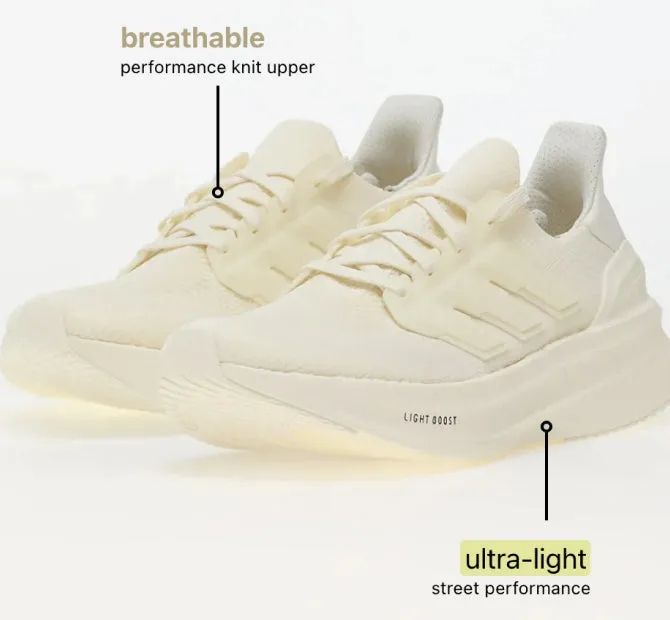
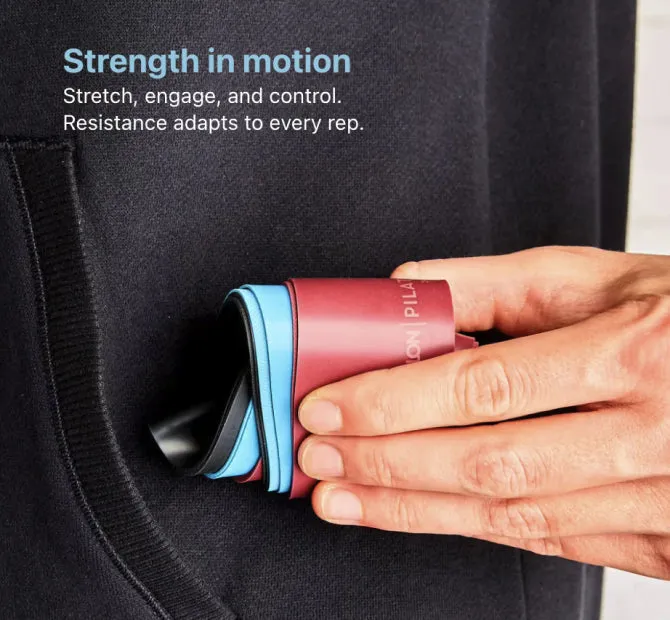
The key word in one colour and the detail in the other.

A heading on the photo with one phrase underlined.
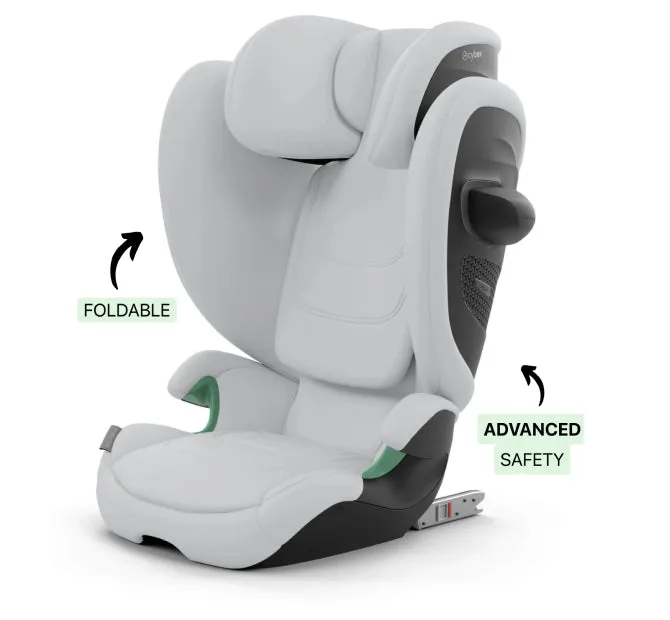
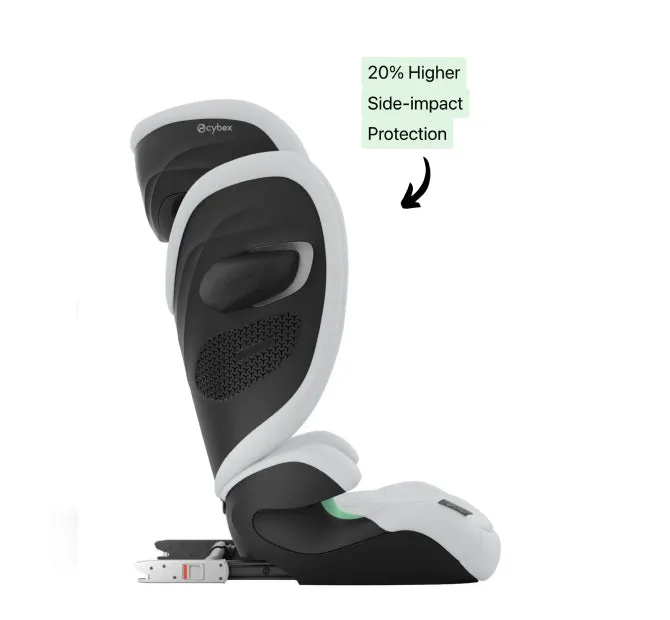
A drawn arrow and a short label for each feature.
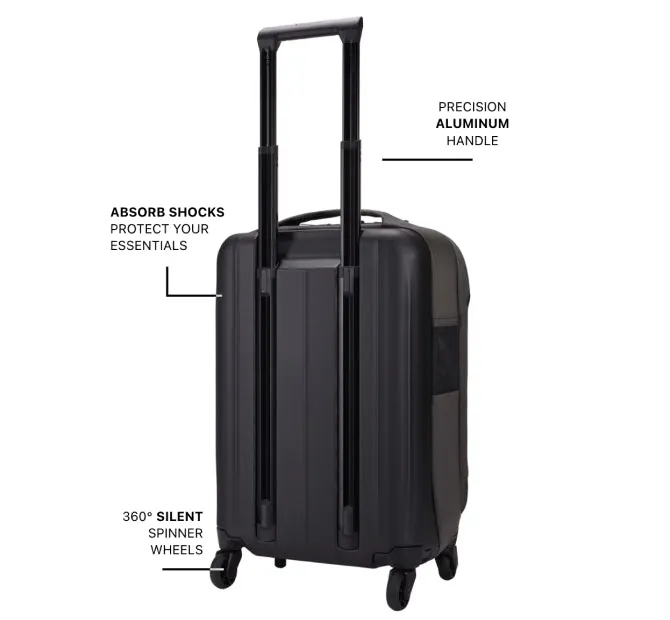
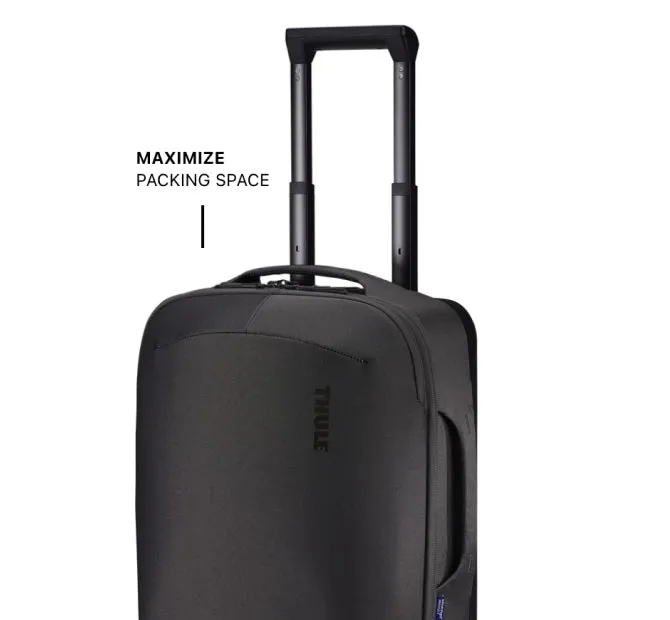
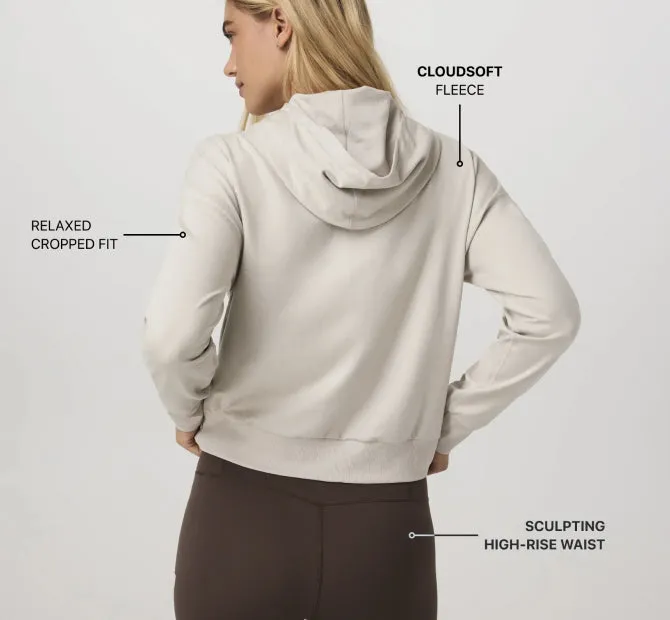
A few words on a straight line for each part worth naming.
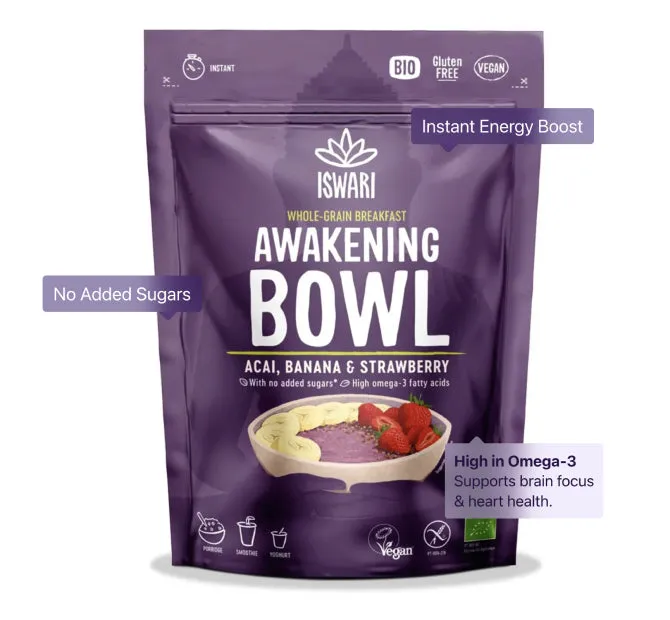
Small labels that float near the part they describe.
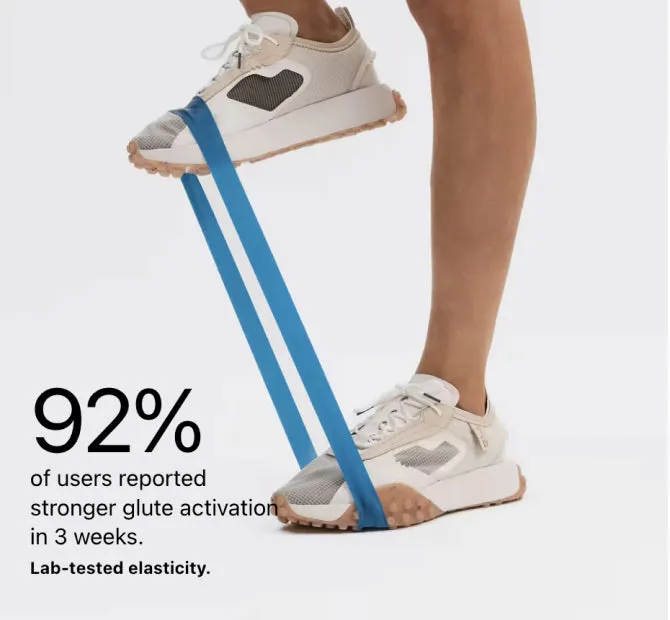
One large number or word, for the fact the shopper sees first.

A large heading, one line in solid letters and one in outline.

A column of small round icons beside the product, one per claim.
Plans: Growth and Scale
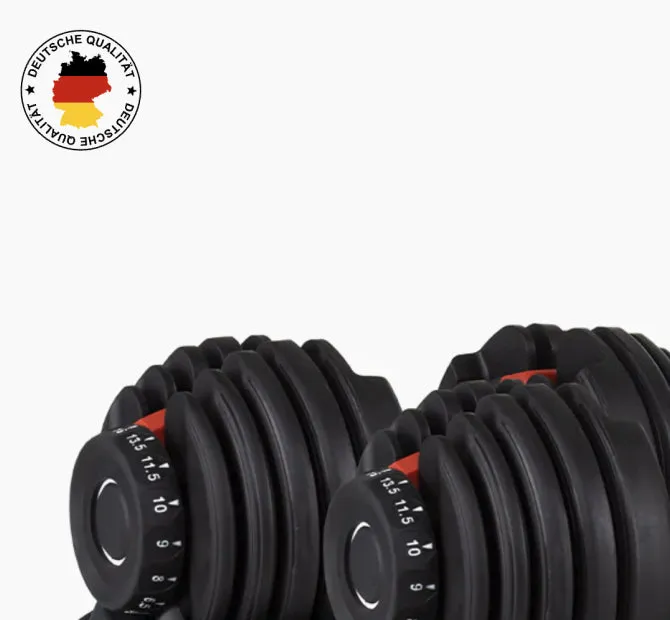
Your own image on the photo, such as a Made in mark.
Plans: Growth and Scale

A short customer review and its stars, set on the photo.
How to add it
You need no code and no developer. You can start from one of more than 20 templates.
Image editor or LinkSpot
You can write the notes into the photo in an image editor and upload it again. This is what each way does.
A note in the photo file is fine if it will never change. A note you want to edit, translate or move for phones is easier on top of the photo.
Scroll the table sideways to see every plan.
| Feature | Free | Starter | Growth | Scale |
|---|---|---|---|---|
| Volumes | ||||
| Products with annotations | 3 | 50 | 100 | 500 |
| Annotations per image | 1 | 3 | 6 | 10 |
| Design library | ||||
| Custom annotation indicators Use an image, an icon or your own SVG instead of the default text shapes. | Not included | Not included | Included | Included |
| Storefront | ||||
| Place elements anywhere on your shop Theme blocks let you add product sets, hotspots, annotations and collages to any section of any page, not only the product gallery. | Not included | Not included | Included | Included |
| Multi-language storefront | Not included | Not included | Included | Included |
Questions
Free allows 1 annotation on each photo, Starter 3, Growth 6 and Scale 10. You can use annotations on 3 products on Free, and on up to 500 on Scale.
A hotspot is a small marker. The shopper taps it to see a product or a text. An annotation shows its note on the photo all the time, with a line, an arrow or a circle that points at a detail.
Yes, on Growth and Scale. You upload it once to the app’s asset library and use it as the marker of any annotation, for example one small icon for each claim.
Yes. The position is saved relative to the photo, not in pixels. You can also give an annotation its own place on a phone, or show it only on a phone or only on a large screen.
Yes, on Growth and Scale. Theme blocks let you add annotations to any section of any page.
No. A page loads only the code for the elements it shows. A product with annotations does not load the badge code or the collage code.
Free plan · 7 day trial on paid plans
That is the whole test. If it does nothing for you, remove the app. Your theme is exactly where it was.
Demo store password 123